
How to message multiple WhatsApp contacts without a broadcast list
When each person needs a different message
Suppose two customers asked your shop for WhatsApp pickup reminders. Maya is coming at 10 am and Sam at 2 pm. A group would put both customers in the same conversation. With individual chats, each sees their own pickup time and can reply directly to the shop. You can do this in WhatsApp Web or on your phone.
If you already have both chats, search for each customer by name, paste the reminder and change the time before sending. If you have a spreadsheet of bookings, the following method keeps the right time beside the right phone number.
Turn two spreadsheet rows into two private drafts
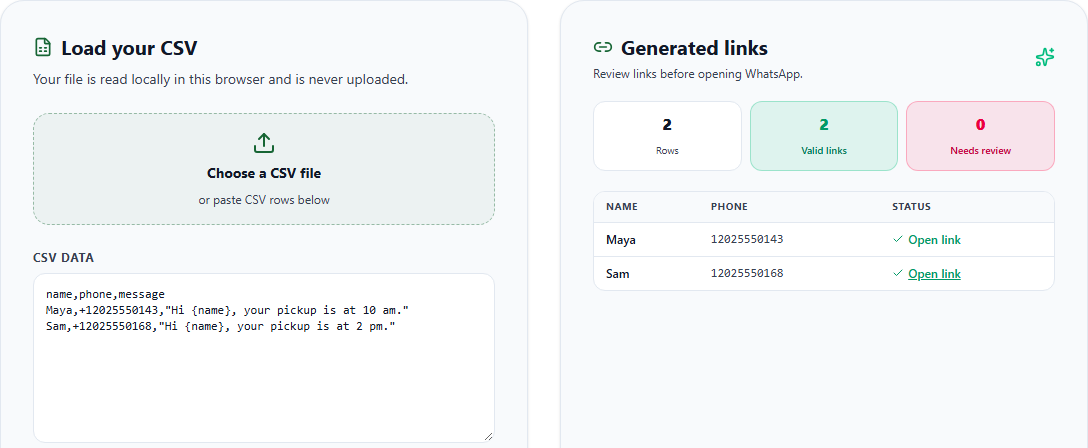
- Copy the example into the generator. Open the CSV to WhatsApp link generator and paste the three lines below into CSV data. The numbers are fictional. To try a real delivery, replace one with your own WhatsApp number in international format, including the country code.
name,phone,message
Maya,+12025550143,"Hi {name}, your pickup is at 10 am."
Sam,+12025550168,"Hi {name}, your pickup is at 2 pm."- Check the column selections. Choose
phonefor the phone column,namefor the name andmessagefor the message. The quotes keep the comma after the greeting inside the same cell. The tool fills in{name}for each row. Put details such as pickup times directly in the message cell. - Review one chat at a time. Under Generated links, choose Open link beside the row you want. In WhatsApp, Maya’s draft reads “Hi Maya, your pickup is at 10 am.” Sam’s reads “Hi Sam, your pickup is at 2 pm.” Check the recipient and time, then press Send in that chat.
Track sent reminders and check delivery
Opening a link only prepares the draft. If two colleagues handle pickups, give one person the list and add a Sent at column in the original sheet. Fill it in after pressing Send. When delivery matters, check the message status in WhatsApp. Anyone who asks to stop should come off the next reminder list.
Keep generated links with the team handling the bookings. A prefilled link contains the recipient’s number and the message in its address, so forwarding the link would share those details. For a single booking you can skip the spreadsheet and use the one-number WhatsApp link generator.
Frequently asked questions
Do recipients need to save my number?
Click to chat works with an active WhatsApp number even if you have never saved each other as contacts. For a standard WhatsApp broadcast list, the recipient needs your number in their address book. Ask customers whether they want reminders on WhatsApp before messaging them.
Can everyone receive the same text?
Yes. Keep the phone and name columns, set the message column to None and enter your text in Fallback message template. Add {name} if you want a different greeting for each person. You still open and send each draft individually.
What if a link opens the wrong chat?
Close the draft and compare the number with the original booking, including its country code. For a list spanning countries, begin each international number with +. Correct the source row and reopen the link before pressing Send.
Sources and further reading
About the author
The WaSenderHQ Editorial Team documents workflows against the current public extension listing and product source, with a focus on accurate setup, privacy, and responsible use. Articles are revised when product behavior changes.