
WhatsApp Event Invitations and RSVP Tracking Workflow
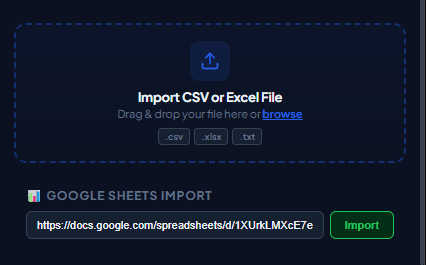
Organizing events requires a clear invitation, current RSVP segments, and a dependable response channel. Use WhatsApp only for guests who expect the invitation or event update.
Practical workflow
An RSVP workflow works best for people who registered, joined the organization, or asked for event updates. Separate invitation, reminder, and operational-update purposes so recipients know what they are receiving.
- 1
Segment the guest list
Separate invited, registered, confirmed, waitlisted, cancelled, and opted-out contacts before every import.
- 2
Use essential event fields
Map name, event title, local date and time, venue or meeting link, and RSVP status. Avoid unrelated profile data.
- 3
Create a clear action
Use one recognizable RSVP or calendar link and state the response deadline without misleading urgency.
- 4
Schedule by purpose
Send the invitation, reminder, and day-of update as separate reviewed queues to the correct current segment.
- 5
Reconcile replies
Update the sheet after responses so confirmed or declined guests do not keep receiving the wrong message.
Pre-send checklist
- Expected guest list
- Current RSVP segment
- Local time included
- Official event link
- One clear action
- Replies reconciled
Common mistakes to avoid
Sending every update to every contact
Confirmed, declined, waitlisted, and unresponsive guests need different communication.
Using a public sheet with attendee details
Limit sharing and keep the campaign tab to the minimum fields needed for the message.
Measure and improve the workflow
Connect the message to an expected event
Write down the appointment, order, interview, invitation, or service action that makes the message relevant. Use a sending window that matches that event and avoid adding unrelated promotion merely because the recipient supplied a phone number for operational updates.
Test clarity with representative rows
Preview short and long names, missing optional fields, international numbers, dates, amounts, and links. Ask whether the recipient can immediately identify the sender, understand why the message arrived, and know what to do next without opening a suspicious or ambiguous link.
Close the loop in the source system
Use the activity log to correct the booking, order, recruiting, or event record that produced the row. Record opt-outs and channel preferences in the system used to create future lists; otherwise the same unwanted recipient may return in the next export.
Evaluate the service outcome
Review whether the intended confirmation, reminder, or response was completed, not simply whether the queue advanced. Note recurring questions and failed fields, then improve the source data and template before repeating the workflow with another expected-recipient group.
Frequently asked questions
Can WaSenderHQ collect RSVPs automatically?
It sends the reviewed messages; your team still needs a form, reply process, or event system to record responses.
Can I schedule the day-of reminder?
Yes, if the browser and linked WhatsApp Web session remain available at the scheduled start time.
Sources and further reading
About the author
The WaSenderHQ Editorial Team documents workflows against the current public extension listing and product source, with a focus on accurate setup, privacy, and responsible use. Articles are revised when product behavior changes.