
How to Send the Same PDF to Multiple Contacts on WhatsApp Web
Send the PDF from a WhatsApp Web chat
Open the recipient’s chat. Click + beside the message box, select Document and choose the PDF from your computer. Check the file name and the chat at the top of the screen, then click Send. Repeat in each chat that needs the file.
For example, you can share a workshop’s arrival instructions with everyone who signed up to receive them on WhatsApp. A file with personal information, such as an invoice or a completed registration form, belongs in the individual chat of the person it concerns.
Send one shared document from a contact spreadsheet
- Check the document. Open
workshop-arrival.pdfon your computer. Check the date and address and confirm the file contains only information meant for all attendees. Keep the file under 8 MB for the extension’s attachment picker. - Prepare the recipients. Give your spreadsheet
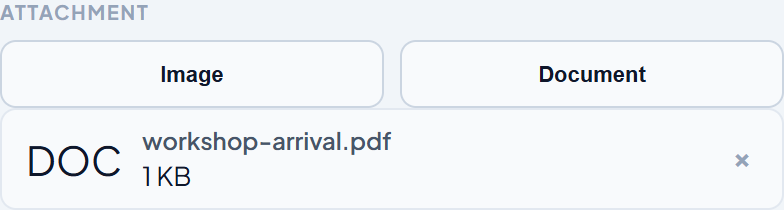
PhoneandNameheaders. Open the extension in the same browser as WhatsApp Web. Under Numbers, choose Import Excel or CSV, then review the imported names and numbers and exclude anyone who opted out. - Select the PDF. Under Message, choose Document in the attachment section, then verify the PDF name shown in the preview. For the accompanying text, try “Hi {name}, here are Thursday’s arrival instructions. We start at 9 am.” The PDF is shared across the campaign, and the name comes from each row.
- Run one test and review the queue. Try a single recipient you control before sending to the rest of the list. Open the test chat, check the message and open the PDF. Then review the final recipient list and the selected document in Sender.
Check the report before resending a file
Review the campaign report after the queue finishes. If an attachment is Pending, open that recipient’s chat and look for the file and its time. If the PDF is already in the chat, leave the row out of the retry. For a failed upload, verify that the file still opens on your computer and check the WhatsApp Web connection before retrying that recipient.
Frequently asked questions
Can the extension attach a different PDF for each row?
A campaign uses the same selected document for every recipient. If each customer needs a different file, match the document to that customer and send it in their individual chat.
Do all the recipients see each other?
When you send the PDF in individual chats, each recipient gets the file in their own conversation and replies there.
Does WhatsApp Web have the same file size limit as the extension?
WaSenderHQ’s picker accepts files up to 8 MB. WhatsApp Help currently lists a 2 GB document limit when attaching directly from a WhatsApp Web chat.
Sources and further reading
About the author
The WaSenderHQ Editorial Team documents workflows against the current public extension listing and product source, with a focus on accurate setup, privacy, and responsible use. Articles are revised when product behavior changes.