
How to Schedule a WhatsApp Web Campaign
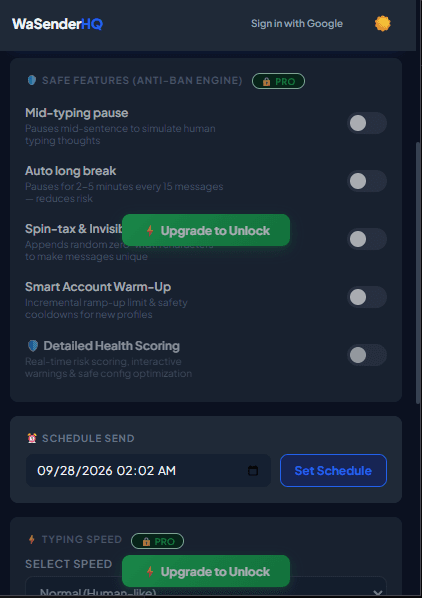
Reaching prospective clients during active working hours leads to higher open and response rates. Learn how to set up time-based campaign triggers using WaSenderHQ.
Practical workflow
Scheduling is useful for preparing a reviewed queue at a suitable local time. It is not cloud delivery: your computer, browser, network connection, and linked WhatsApp Web session must be available when the alarm fires.
- 1
Confirm recipient time zones
Choose a time that is reasonable for the recipient, not merely convenient for the sender. Split lists when several time zones are involved.
- 2
Prepare the final list
Remove opted-out, duplicate, invalid, and already-contacted rows before scheduling so the saved queue is the exact intended audience.
- 3
Preview the message
Check names, dates, links, and attachment availability. A scheduled queue should not depend on a file that may be moved or deleted.
- 4
Set the local start time
Confirm the browser and operating-system time zone, then record the scheduled time in your campaign notes.
- 5
Keep the session available
Prevent sleep, keep the browser running, and confirm WhatsApp Web is connected. Return before start time if the campaign needs active supervision.
Pre-send checklist
- Recipient time zone checked
- Final list frozen
- Fields previewed
- Attachment available
- Computer sleep disabled
- WhatsApp Web connected
Common mistakes to avoid
Closing the browser
The alarm may be saved, but the messaging workflow cannot complete without the required active browser and WhatsApp Web session.
Scheduling an unreviewed live sheet
Import and freeze the intended rows first so later spreadsheet edits do not create uncertainty.
Measure and improve the workflow
Define the stop conditions first
Before starting, decide who will supervise the queue and when it must pause: unexpected formatting, a disconnected WhatsApp Web session, a rising failure count, or recipient feedback that the message was not expected. Automation should make a reviewed process repeatable, not remove human judgment.
Measure the workflow, not a vanity number
Track sent, skipped, and failed entries together with pauses, corrections, replies, and opt-out requests. A large sent count does not prove delivery, relevance, or business value. The useful question is whether the intended service task was completed without creating avoidable recipient complaints.
Review access after testing
Check browser permissions, Google access, local drafts, saved schedules, and downloaded activity files after the campaign. Revoke access that is no longer required and remove outdated queues so a future user cannot restart an old campaign by mistake.
Keep a manual recovery path
Document how to stop the queue, reconnect WhatsApp Web, verify the current row, and continue only after the sender understands what happened. If behavior is unexpected, preserve the log and test with your own number rather than repeatedly retrying a real customer.
Frequently asked questions
Can I turn off my computer after scheduling?
No. The current extension is a local browser tool, not a cloud scheduler.
Can I cancel a scheduled queue?
Yes. Review or cancel the saved schedule in the extension before its start time.
Sources and further reading
About the author
The WaSenderHQ Editorial Team documents workflows against the current public extension listing and product source, with a focus on accurate setup, privacy, and responsible use. Articles are revised when product behavior changes.