
A Consent-Based Lead Follow-up Workflow in Google Sheets
A prompt follow-up can be useful when a person has just asked to hear from the business. Relevance, permission, staffing, and a clear next step matter more than an unsupported universal response-time claim.
Reviewed Lead Pipeline Setup
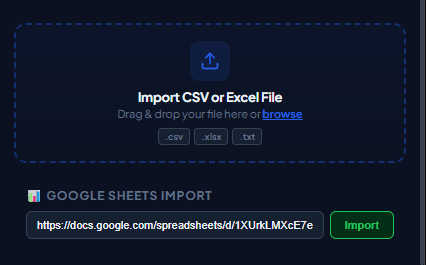
Use the sheet to organize approved rows, assign an owner, and prevent duplicates. Import the ready segment only after a person reviews the source and intended message.
Practical workflow
A fast follow-up is useful only when the lead actually requested contact and the message explains the context. Use the sheet to organize the handoff, then keep a human review between data collection and sending.
- 1
Record the permission source
Add fields for form name, request date, requested channel, and owner. This helps the sender understand why the recipient is in the queue.
- 2
Assign a follow-up owner
One person should review each row and prevent duplicate contact from several team members.
- 3
Write a contextual template
Mention the request, business name, and next useful action. Avoid pretending the message is personal if it is generated from a shared workflow.
- 4
Import only ready rows
Filter the sheet to approved, uncontacted records and copy them into a campaign-specific tab before importing.
- 5
Write the result back manually
After the activity log is reviewed, update the sheet with sent, failed, replied, or opted-out status so later follow-ups stay accurate.
Pre-send checklist
- Permission source recorded
- Owner assigned
- Duplicate check completed
- Campaign tab filtered
- Message context included
- Opt-outs excluded
Common mistakes to avoid
Using “within five minutes” as a promise
Response time depends on staffing and context. Set an internal service goal without making an unsupported public performance claim.
Re-importing every lead
Filter out contacted, rejected, and opted-out rows before each import.
Measure and improve the workflow
Record the source snapshot
Write down when the file or sheet was exported, which filters were active, who owns the source list, and which columns were intentionally included. This makes a later correction traceable and prevents an old export from being mistaken for the current campaign list.
Measure import quality
Count empty phone cells, duplicates, rejected rows, missing personalization values, and the countries represented in your sample. Import quality is more useful than raw list size: a smaller reviewed list is easier to supervise and less likely to produce confusing messages.
Reconcile the result
After the test, compare the activity log with the source rows. Correct formatting problems in the source system instead of patching only the exported file, and keep consent or communication-preference records outside the campaign spreadsheet so they remain available for future checks.
Protect the working copy
Give the campaign file a clear date and owner, limit access to people preparing the send, and remove unrelated notes before sharing it. Delete temporary exports when they are no longer needed, following the retention rules that apply to your organization.
Frequently asked questions
Is this a live CRM integration?
No. It is a reviewed spreadsheet import workflow. You remain responsible for status updates and duplicate prevention.
What should the first message contain?
Identify the business, reference the request, provide a useful next step, and make it easy to decline further contact.
Sources and further reading
About the author
The WaSenderHQ Editorial Team documents workflows against the current public extension listing and product source, with a focus on accurate setup, privacy, and responsible use. Articles are revised when product behavior changes.