
Google Sheets to WhatsApp: Import and Personalize Rows
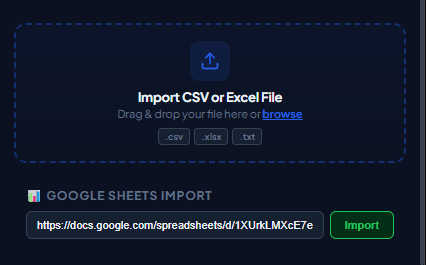
Manually exporting CSV files and re-uploading them can quickly become tedious if your lead lists update daily. Linking Google Sheets directly to your WhatsApp Web session is a powerful way to automate your sales pipeline.
1. Choose the Import Method
Depending on the installed version, WaSenderHQ can read a published Google Sheets CSV link or use Google authorization to import selected values. Review the access method shown inside your extension.
2. Structuring Google Sheets for Success
Keep a dedicated sheet row for column mapping. Do not merge cells or leave blank rows in the middle of active contact sections. Make sure your phone column represents valid country codes.
3. Practical Business Utility
When a person requests a follow-up through a form, the approved row can be imported into a campaign-specific list. Review the context and message before starting the queue.
Practical workflow
Google Sheets can act as a practical source list, but the browser extension imports a snapshot of rows rather than running a background CRM synchronization. Treat each import as a deliberate review point before you prepare a campaign.
- 1
Prepare the sheet
Keep one recipient per row and one field per column. Freeze the header row and give each field a short, unique name.
- 2
Choose the access method
The installed build may accept a published CSV link or provide Google authorization. Use the method shown inside your extension and review the access prompt.
- 3
Limit shared data
Create a campaign-specific tab that contains only the columns needed for the follow-up. Do not expose internal notes or unrelated customer records.
- 4
Import current rows
Run the import after the sheet is ready. If the sheet changes later, import again and review the changed rows instead of assuming a live sync.
- 5
Preview personalization
Check rows with missing names, unusual characters, long links, and dates. Confirm that the final message still makes sense when an optional field is empty.
Pre-send checklist
- Campaign-specific tab
- Unique headers
- Phone column stored as text
- Sharing scope reviewed
- Latest rows re-imported
- Authorization can be revoked
Common mistakes to avoid
Publishing an entire workbook
A public CSV link can expose more information than intended. Publish only the minimum campaign tab or use an authorized method when available.
Assuming changes sync automatically
An imported list does not necessarily refresh in the background. Re-import and review before the next campaign.
Measure and improve the workflow
Record the source snapshot
Write down when the file or sheet was exported, which filters were active, who owns the source list, and which columns were intentionally included. This makes a later correction traceable and prevents an old export from being mistaken for the current campaign list.
Measure import quality
Count empty phone cells, duplicates, rejected rows, missing personalization values, and the countries represented in your sample. Import quality is more useful than raw list size: a smaller reviewed list is easier to supervise and less likely to produce confusing messages.
Reconcile the result
After the test, compare the activity log with the source rows. Correct formatting problems in the source system instead of patching only the exported file, and keep consent or communication-preference records outside the campaign spreadsheet so they remain available for future checks.
Protect the working copy
Give the campaign file a clear date and owner, limit access to people preparing the send, and remove unrelated notes before sharing it. Delete temporary exports when they are no longer needed, following the retention rules that apply to your organization.
Frequently asked questions
Does WaSenderHQ edit my sheet?
The workflow is designed to read selected values for import. Confirm the exact permission shown in your browser before authorizing access.
Can I revoke Google access?
Yes. Google account settings let you review and remove third-party access after the import workflow is no longer needed.
Sources and further reading
About the author
The WaSenderHQ Editorial Team documents workflows against the current public extension listing and product source, with a focus on accurate setup, privacy, and responsible use. Articles are revised when product behavior changes.