
How to Format a CSV for WhatsApp Bulk Messages
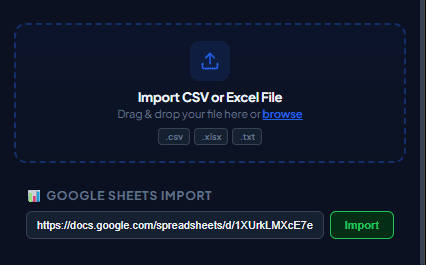
Exporting lead databases from CRMs and importing them into your outreach system is a core marketing workflow. This guide outlines how to structure a CSV file and upload it to WaSenderHQ for automated broadcasts.
Step 1: Structuring the Spreadsheet
Create a spreadsheet in Google Sheets or Microsoft Excel. Your first row must contain clear, descriptive header labels. Ensure you have columns representing numbers and placeholders:
- Phone: Include international prefix codes without spaces or symbols (e.g.,
+15551234567). - Name: Recipient name variable for placeholder replacement.
- Custom Tags: Columns like
Company,BookingTime, orOrderNumber.
Step 2: Exporting to CSV UTF-8
Always export your file using the Comma Separated Values (.csv) format. Verify that the encoding is set to UTF-8 to preserve emojis, non-English alphabets, or special symbols.
Step 3: Loading into WaSenderHQ
Open WhatsApp Web, open the WaSenderHQ sidebar widget, click "Import CSV", and select your file. The extension will automatically recognize the headers and map them to your campaign placeholders.
Practical workflow
A reliable CSV campaign starts with predictable columns, international phone numbers, and a small test import. The goal is not merely to make the file open; it is to make every personalized row easy to review before any message is sent.
- 1
Create one header row
Use clear labels such as phone, name, order_id, and appointment_time. Avoid merged cells, blank header names, or two columns with the same label.
- 2
Normalize phone numbers
Store the country calling code with each number. Remove visual formatting that may be interpreted differently when spreadsheet software exports the file.
- 3
Save as UTF-8 CSV
UTF-8 preserves accented names, Arabic text, and other scripts more reliably. Reopen the exported file once to confirm that characters and delimiters survived.
- 4
Import and map fields
Choose the phone column first, then map only the fields used in the message. A short field list makes previews easier to inspect.
- 5
Test a controlled sample
Start with numbers you own or colleagues who agreed to test. Confirm field replacement, message formatting, links, and the activity log before using a larger expected-recipient list.
Pre-send checklist
- One unique header per column
- International phone format
- UTF-8 encoding
- No empty phone rows
- Consent recorded outside the CSV
- Several previews checked
Common mistakes to avoid
Letting a spreadsheet convert phone numbers
Long numbers can appear in scientific notation or lose a leading plus sign. Treat the phone column as text before exporting.
Using one cell for several recipients
Each row should represent one recipient. Comma-separated numbers inside a cell create ambiguous mapping and reporting.
Measure and improve the workflow
Record the source snapshot
Write down when the file or sheet was exported, which filters were active, who owns the source list, and which columns were intentionally included. This makes a later correction traceable and prevents an old export from being mistaken for the current campaign list.
Measure import quality
Count empty phone cells, duplicates, rejected rows, missing personalization values, and the countries represented in your sample. Import quality is more useful than raw list size: a smaller reviewed list is easier to supervise and less likely to produce confusing messages.
Reconcile the result
After the test, compare the activity log with the source rows. Correct formatting problems in the source system instead of patching only the exported file, and keep consent or communication-preference records outside the campaign spreadsheet so they remain available for future checks.
Protect the working copy
Give the campaign file a clear date and owner, limit access to people preparing the send, and remove unrelated notes before sharing it. Delete temporary exports when they are no longer needed, following the retention rules that apply to your organization.
Frequently asked questions
Can Excel create the CSV?
Yes. Export as a UTF-8 comma-separated file, then reopen it to check the delimiter, phone values, and non-English characters.
Should the file contain message text?
It can, but a shared template plus separate custom fields is usually easier to review and maintain.
Sources and further reading
About the author
The WaSenderHQ Editorial Team documents workflows against the current public extension listing and product source, with a focus on accurate setup, privacy, and responsible use. Articles are revised when product behavior changes.