
Fix CSV Import Errors: Encoding, Headers, and Delimiters
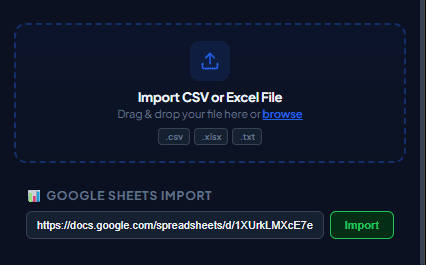
Encountering import errors during a live campaign can disrupt your schedule. Here are simple steps to resolve delimiter conflicts and encoding issues when importing CSV files.
Common Fixes for CSV Issues
- Delimiter Errors: European versions of Excel often export CSV files with semicolons instead of commas. Convert delimiters using Notepad or Google Sheets.
- UTF-8 Encoding: Save your spreadsheet as "CSV UTF-8 (Comma delimited)" to preserve accents and emojis.
Practical workflow
Most CSV failures come from encoding, delimiter, header, or phone-format problems. Diagnose the file in that order so you fix the source once instead of editing individual rows inside the campaign.
- 1
Open the file as plain text
Confirm that the first row contains headers and that each later row uses the same delimiter. Quoted commas should remain inside quoted fields.
- 2
Verify UTF-8 encoding
If names display as replacement characters or question marks, export again as UTF-8 and avoid copying through software that changes encoding.
- 3
Check the delimiter
Some regional spreadsheet settings export semicolons instead of commas. Use the format accepted by the importer or re-export explicitly as comma-separated values.
- 4
Inspect row length
A broken quote or extra delimiter can shift every later column. Compare the failing row with a known-good row.
- 5
Create a minimal test file
Copy the header and two representative rows into a new file. If it imports, add rows back in batches to isolate the malformed data.
Pre-send checklist
- UTF-8 confirmed
- Comma delimiter confirmed
- Unique non-empty headers
- Balanced quotes
- Same fields per row
- Minimal sample imports
Common mistakes to avoid
Renaming the extension only
Changing .xlsx to .csv does not convert the file. Use the spreadsheet export function.
Deleting every comma
Commas inside a properly quoted field are valid. Fix the export or quoting instead of damaging message content.
Measure and improve the workflow
Record the source snapshot
Write down when the file or sheet was exported, which filters were active, who owns the source list, and which columns were intentionally included. This makes a later correction traceable and prevents an old export from being mistaken for the current campaign list.
Measure import quality
Count empty phone cells, duplicates, rejected rows, missing personalization values, and the countries represented in your sample. Import quality is more useful than raw list size: a smaller reviewed list is easier to supervise and less likely to produce confusing messages.
Reconcile the result
After the test, compare the activity log with the source rows. Correct formatting problems in the source system instead of patching only the exported file, and keep consent or communication-preference records outside the campaign spreadsheet so they remain available for future checks.
Protect the working copy
Give the campaign file a clear date and owner, limit access to people preparing the send, and remove unrelated notes before sharing it. Delete temporary exports when they are no longer needed, following the retention rules that apply to your organization.
Frequently asked questions
Why are all contacts in one column?
The file probably uses a delimiter that does not match the importer or spreadsheet locale.
Why are accented names corrupted?
The source was likely saved with a legacy encoding. Export it again as UTF-8 CSV.
Sources and further reading
About the author
The WaSenderHQ Editorial Team documents workflows against the current public extension listing and product source, with a focus on accurate setup, privacy, and responsible use. Articles are revised when product behavior changes.